
Using Prometheus & Perses To Monitor My Self-Hosted Environment
Overview
It is important to be aware of how your environment is operating, so monitoring and observability are a high priority in being aware of and resolving issues quickly and effectively. In this post we will discuss how you can leverage Prometheus and Perses to both visualize your environment and send alerts when/if something goes wrong.
Installing Components
I use a CentOS host, so some of this will be specific to Fedora/CentOS/RHEL systems; but comparable installations methods are available for most Linux distributions
Deploy Perses Using A Podman Quadlet
Create a Quadlet using a configuration like the one below to integrate with Traefik.
[Unit]
Wants=traefik.service
Requires=frontend-network.service
After=network-online.target
Requires=network-online.target

[Container]
ContainerName=perses
Image=docker.io/persesdev/perses:latest
PodmanArgs=--memory=1G --cpus=4
Exec="--config=/data/config.yaml"
Volume=/opt/perses:/data:z
SecurityLabelType=container_runtime_t
Network=frontend
Label="traefik.enable=true"
Label="traefik.docker.network=frontend"
Label="traefik.http.routers.perses.rule=Host(`ops.yourdomain.tld`)"
Label="traefik.http.routers.perses.entrypoints=https"
Label="traefik.http.routers.perses.service=perses-http"
Label="traefik.http.routers.perses.tls.certresolver=traefiktls"
Label="traefik.http.services.perses-http.loadbalancer.server.port=8080"

[Service]
Restart=always

[Install]
WantedBy=default.target
Create the
/opt/persesdirectory where data will be storedAdd the
config.yamlto the/opt/persesdirectorydatabase: file: folder: "/data/storage" extension: "yaml" security: enable_auth: true encryption_key: XXXXXXXXXXXXXXXXXXXXXXXXXXXXXXXX cookie: same_site: strict secure: true authentication: disable_sign_up: true providers: oidc: - slug_id: keycloak name: Keycloak client_id: perses client_secret: XXXXXXXXXXXXXXXXXXXXXXXXXXXXXXXX redirect_uri: https://ops.yourdomain.tld/api/auth/providers/oidc/keycloak/callback issuer: https://sso.yourdomain.tld/realms/<your keycloak realm> scopes: [ "openid", "profile", "email", "roles" ] logout: enabled: true provisioning: interval: 10s folders: - /data/dashboards - /data/datasources - /data/authorization- WARNING Be sure to generate a random
encryption_key, set theclient_secret, and define the keycloak settings to match your environment
- WARNING Be sure to generate a random
Enable and start the quadlet:
systemctl daemon-reload
systemctl start perses
Install Prometheus & AlertManager
- Install the packages
sudo dnf install -y prometheus alertmanager - Enable the servicesbash
sudo systemctl enable --now prometheus
sudo systemctl enable --now prometheus-alertmanager
Install Node Exporter
- Install the package
sudo dnf install -y node-exporter - Enable the service
sudo systemctl enable --now node_exporter
Install Prometheus Podman Exporter
- Install the package
sudo dnf install -y prometheus-podman-exporter - Enable the service
sudo systemctl enable --now prometheus-podman-exporter
Configuring Traefik To Export Metrics
My setup is running Traefik as a container using a Podman Quadlet and the service is named traefik. Your configuration may be different, but the configuration settings are identical
- Edit the Traefik static configuration and add the following at the top levelyaml
metrics: prometheus: entryPoint: metrics addEntryPointsLabels: true addRoutersLabels: true addServicesLabels: true - Add a new item to
entryPointsin the Traefik static config:entryPoints: metrics: address: ":8082" - Modify the Traefik Quadlet to export the new metrics endpointini
# Snippet from /etc/containers/systemd/traefik.container # Only the changed lines are shown [Container] PublishPort=8082:8082 - Restart Traefik:
sudo systemctl restart traefik
Configuring Prometheus
Collection Jobs
- Enable collection from exportersyaml
## Excerpt from /etc/prometheus/prometheus.yml ## ..SNIP scrape_configs: - job_name: 'prometheus' static_configs: - targets: ['0.0.0.0:9090'] - job_name: node static_configs: - targets: ['0.0.0.0:9100'] - job_name: podman static_configs: - targets: ['0.0.0.0:9882'] - job_name: traefik static_configs: - targets: ['127.0.0.1:8082'] - Restart the
prometheusservice:sudo systemctl restart prometheus
AlertManager Configuration
For this example, I will only configure a single receiver using SMTP, but alertmanager is capable of a number of different receiver types and routing to difference receivers depending on the alert.
- Edit the
/etc/prometheus/alertmanager.ymlfileyamlglobal: smtp_smarthost: 'mail.yourdomain.tld:587' smtp_from: 'redacted@yourdomain.tld' smtp_auth_username: 'REDACTED' smtp_auth_password: 'REDACTED' templates: - '/etc/prometheus/alertmanager_templates/*.tmpl' route: group_by: ['alertname', 'service'] group_wait: 30s group_interval: 5m repeat_interval: 3h receiver: Deven routes: receivers: - name: Deven email_configs: - to: you@yourdomain.tld
Adding Alert Rules
Alerts themselves are NOT generated by AlertManager, it just routes and sends the alerts. Prometheus generates an alert based on a rule, and then sense the alert to AlertManager for transmission. In your prometheus.yml configuration, add a section to enable alerts and rules:
alerting:
  alertmanagers:
  - static_configs:
    - targets: ['localhost:9093']

rule_files:
  - "host.yml"
And in your host.yml rules file, let's start with a simple example:
groups:
  - name: host
    rules:
      - alert: High5MinLoadAvg
        expr: node_load5 > 2
        for: 5m
        labels:
          severity: warning
        annotations:
          summary: "High 5 minute load average detected"
          description: "5 Minute Load Average is $value"
This rule is using the node_exporter we installed above and added to the scape configs. The watches the value node_load5 and will generate an alert to AlertManager if the value exceeds 2. This is an arbitrarily low value on my 16 core host, but I did that so that I could be sure I could cause it to send an alert for testing.
Data Sources In Perses
Adding a data source in Perses is pretty simple and can be accomplished from the Perses web console, but it can also be defined in your configuration files.
From The Web Console
- Point your browser to the Perses instance and log on.
- Click on "Admin"
- Click on "Global Datasources" (You can also define datasources in a project)
- Click "Add Global Datasource"
- You must fill in the following fields as a minimum:
- Name: prometheus (This name is used in all following examples, but you can name it whatever you like)
- Plugin Options: Prometheus Datasource
- General Settings -> Scrape Interval: 15s
- HTTP Settings: Proxy
- HTTP Settings -> URL: http://172.16.12.1:9080 (Change this to the IP of your container network's default gateway, which should be your host.)
- Click "Save"
Declarative Data Source
- Create a directory
/opt/perses/storage/globaldatasources - Add a file
prometheus.yamlto that directorykind: GlobalDatasource metadata: name: prometheus createdAt: 2026-04-06T17:22:54.315392882Z updatedAt: 2026-04-08T08:26:03.389799167Z version: 38 spec: display: name: linux default: true plugin: kind: PrometheusDatasource spec: proxy: kind: HTTPProxy spec: allowedEndpoints: - endpointPattern: /api/v1/labels method: POST - endpointPattern: /api/v1/series method: POST - endpointPattern: /api/v1/metadata method: GET - endpointPattern: /api/v1/query method: POST - endpointPattern: /api/v1/query_range method: POST - endpointPattern: /api/v1/label/([a-zA-Z0-9_-]+)/values method: GET - endpointPattern: /api/v1/parse_query method: POST url: http://172.16.12.1:9090/ scrapeInterval: 15s- WARNING Be sure to update the
urlto point to the default gateway for your Perses container network!!! This SHOULD be an interface where your host is listening for prometheus requests.
- WARNING Be sure to update the
Creating Your First Dashboard
From the web console
- Point your browser to the Perses instance and log on.
- Click on "Create Project"
- Enter a name for your project and click "Add". For this example, I will call it "Home"
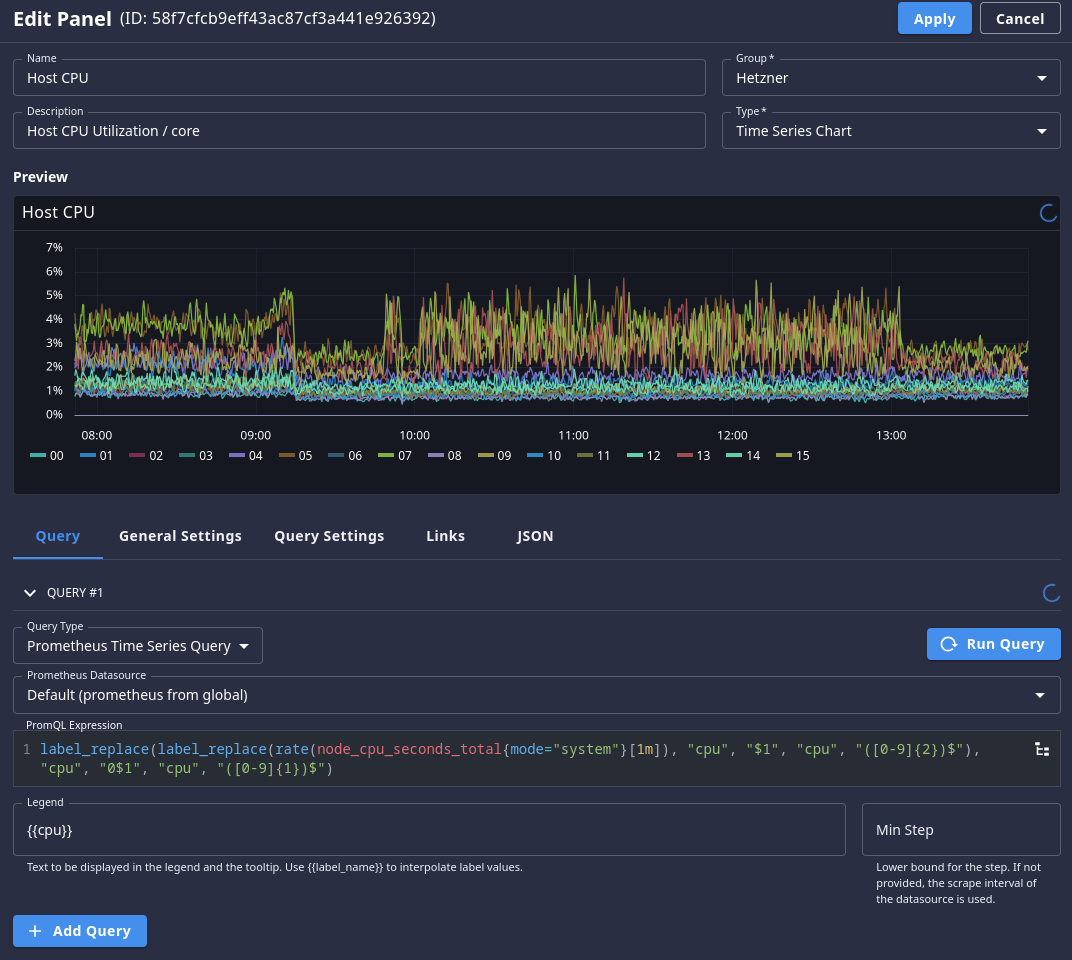
- When the new "Home" project is shown, create a new Dashboard by clicking "Add Dashboard". Name the dashboard "Host" as we will add graphs showing host resources from the Linux node_exporter
- Click on "Add Panel"
- Fill in the fields as shown below:
- Name: CPU Utilization
- Description: Current utilization of each CPU core
- Group: Panel Group
- Type: Time Series Graph
- Query Type: Prometheus Time Series Query
- Prometheus Datasource: prometheus
- PromQL Expression:
label_replace(label_replace(rate(node_cpu_seconds_total{mode="system"}[1m]), "cpu", "$1", "cpu", "([0-9]{2})$"), "cpu", "0$1", "cpu", "([0-9]{1})$")- The important metric here is
node_cpu_seconds_total. The other parts of the PromQL query are formatting. - This will show each CORE as a separate line on the graph
- The important metric here is
- Legend:
{{cpu}}
- Click "Run Query"
Declaratively
- Create the directory structure under
/opt/perses/storagemkdir -p /opt/perses/storage/projects /opt/perses/storage/dashboards - Create the new project file as
/opt/perses/storage/projects/home.yaml:kind: Project metadata: name: home createdAt: 2026-04-06T17:15:21.89490181Z updatedAt: 2026-04-06T17:15:21.89490181Z version: 0 spec: display: name: Home - Create the dashboard file as
/opt/perses/storage/dashboards/home/host.yamlkind: Dashboard metadata: name: host createdAt: 2026-05-14T14:04:41.183084953Z updatedAt: 2026-05-14T14:04:41.183084953Z version: 0 project: home spec: display: name: Host panels: fd368ea215904b1c817b47be644d4a92: kind: Panel spec: display: name: Host CPU description: Host CPU Utilization / core plugin: kind: TimeSeriesChart spec: legend: position: bottom visual: areaOpacity: 0 connectNulls: false display: line lineStyle: solid lineWidth: 1.25 pointRadius: 2.75 yAxis: format: unit: percent-decimal label: "" show: true queries: - kind: TimeSeriesQuery spec: plugin: kind: PrometheusTimeSeriesQuery spec: query: label_replace(label_replace(rate(node_cpu_seconds_total{mode="system"}[1m]), "cpu", "$1", "cpu", "([0-9]{2})$"), "cpu", "0$1", "cpu", "([0-9]{1})$") seriesNameFormat: '{{cpu}}' layouts: - kind: Grid spec: display: title: Host Metrics collapse: open: true items: - x: 0 "y": 0 width: 12 height: 6 content: $ref: '#/spec/panels/fd368ea215904b1c817b47be644d4a92' duration: 1h refreshInterval: 0s
Wrapping Up
you have metrics, you have a way to visualize those metrics, and you have a way to generate alerts on those metrics. Pretty cool! Now, go an experiment and create some really useful dashboards!